How to Publish to Google Play Books: A Step-by-Step Guide
While some platforms make you feel like you need a PhD in rocket science just to upload a cover, Google Play Books is surprisingly author-friendly. If you’re looking to self-publish and reach a global audience of Android users, you’re in the right place.
As a nonfiction book coach focusing on publishing, I’ve led hundreds of authors through the self-publishing process, and I often recommend Google Play Books.
Whatever brings you here, you’re interested in selling your book on Google Play, and you want to know more details, like is it worth it, how to upload, and helpful Google Play Books self-publishing tips. I got you.
Before we get into the “how,” let’s talk about the “why.”

Why Publish to Google Play Books?
Google Books isn’t just a store. It’s a vast digital library containing over 10 million titles. When you publish on Google Play Books, you are entering a massive marketing ecosystem where users can search for, preview, and purchase books.
The single biggest advantage of Google Play books for self-publishing is discoverability. Because Google is, well, Google! When you publish with them, your book’s metadata (title, author name, description) is indexed by their search engine. This means your book can surface in regular Google web search results, not just in the Google Play Books app!
Additionally, the Sample Pages view allows Google to produce searchable snippets that signal relevance and engagement to search engines, helping potential readers find your work when they are searching for specific keywords or topics.
Self-publishing here gives you direct access to the massive global Android ecosystem, reaching users in dozens of countries who may never browse other retailers. In fact, you can reach more countries with Google (roughly 75) than you can with Apple (roughly 50).
Google Play Books is one of the five largest ebook retailers. While its overall global market share is reportedly below 10%, it does very well in the Middle East and Asia, so a book self-published on Google Play reaches readers it wouldn’t otherwise reach.
➡️Read more: Pros & Cons of Publishing Books on Google Books
What Sells?
According to book publicist Scott Lorenz, “If you want to maximize sales on Google Play Books, focus on non-fiction—self-help, business, technical guides, and travel books tend to perform best. That said, genre fiction like romance, thrillers, and sci-fi can thrive with strong promotion.”
Now, let’s get that masterpiece online.
Initial Step: Set Up Your Publisher Account
All publishing is managed through the Google Play Books Partner Center.
Before you can publish books on Google Play, you have to handle the administrative “fun” stuff.
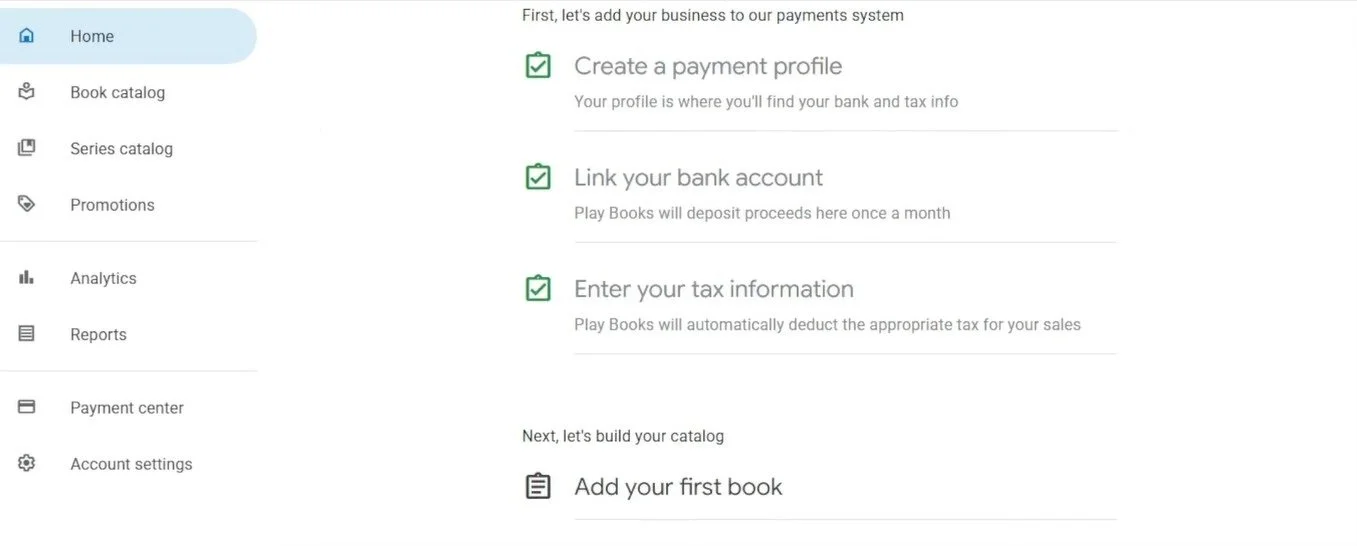
Create your Google Play Books Partner Center account, link your bank account (they pay via EFT or direct deposit, and in some countries, by wire transfer), and enter your tax information (you must provide a physical address). It can take a few days for that all to be approved.
Step 1. Add Your Book
Once you’ve done that successfully, click “Add your book.”
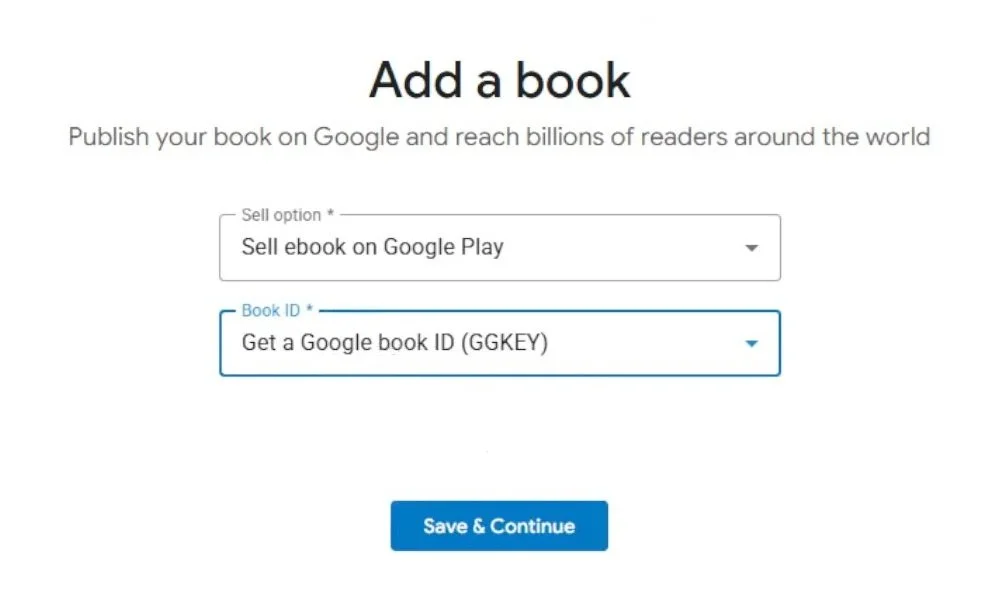
You’ll have several options: selling an ebook, an audiobook, creating an auto-narrated audiobook where Google’s AI handles the voice work for you, or offering a preview on Google Books only.
That’s right—you don’t have to publish on Google Play to have your self-published book indexed by Google and put on Google Books.
Here’s the process to “Sell ebook on Google Play.”
You’ll next be asked to “Select a book ID.” You’ll enter your ISBN (if you have one) or “Get a Google book ID” (GGKEY). They will assign one to you for free.
Do I Need an ISBN to Publish on Google Play?
No, you don’t need an ISBN to publish on Google Play, but you’ll probably want one, and I recommend getting one.
If you leave the ISBN field blank, Google will assign a platform‑specific internal identifier called a GGKEY, which is sufficient for listing and sales reporting on Google Play only.
If you plan to publish across multiple retailers, want full catalog presence in Google Books, or want to assign a publisher name to your book, you should get an ISBN.
Supplying an ISBN is required for full cataloging and indexing in Google Books. As Lorenz notes, doing so “can open more doors for your book by improving discoverability to maximize sales potential.”
ISBNs are sold or assigned by your national ISBN agency (or in some cases, they’re free). In the US, that’s Bowker Publishing Services. Remember: One ISBN is required per book format.
➡️For more on ISBNs, see “Do I Need an ISBN to Self-Publish My Book?”
When you’re done with these steps, click Save & Continue.
To successfully self-publish, you need three digital items:
Your Book Cover: High-resolution; nobody buys a book that looks like it was designed in Microsoft Paint on Windows 95. A professionally designed cover is a must.
An EPUB Version: This is the preferred format for digital readers because it’s “reflowable,” although PDF is accepted.
A file with your metadata in it. This is for your eyes only. It makes copy-pasting your metadata a breeze so you don’t make typos.
If you only have a Word document, don’t panic. Having a clean EPUB is essential not just for the ebook, but also if you want to use the auto-narrated audiobook feature later.
You can use free sites like convert.com to perform a Google Play books upload EPUB conversion. Other relatively inexpensive programs like Vellum (for Mac) and Atticus can generate nice EPUB files.
Step 2. Book Info: Add Your Book Details and Metadata
About the Book
The About the Book tab is next.
Here it helps to copy-paste from a separate document, file, or note.
Title: Enter the title and subtitle (if you have one) precisely, with the proper capitalization. Check it twice.
Description: Paste that in with the proper bold and italics.
Remember, you want blank lines between paragraphs. You don’t want your description to look like a jam-packed wall of text. Be sure your book incorporates words or phrases that people will be searching for. Apply bold and italics for emphasis.
A book description is NOT a summary; it is sales copy. You can’t go wrong by following the AIDA method.
Make sure your Book identifier (or ISBN) and Language is correct.
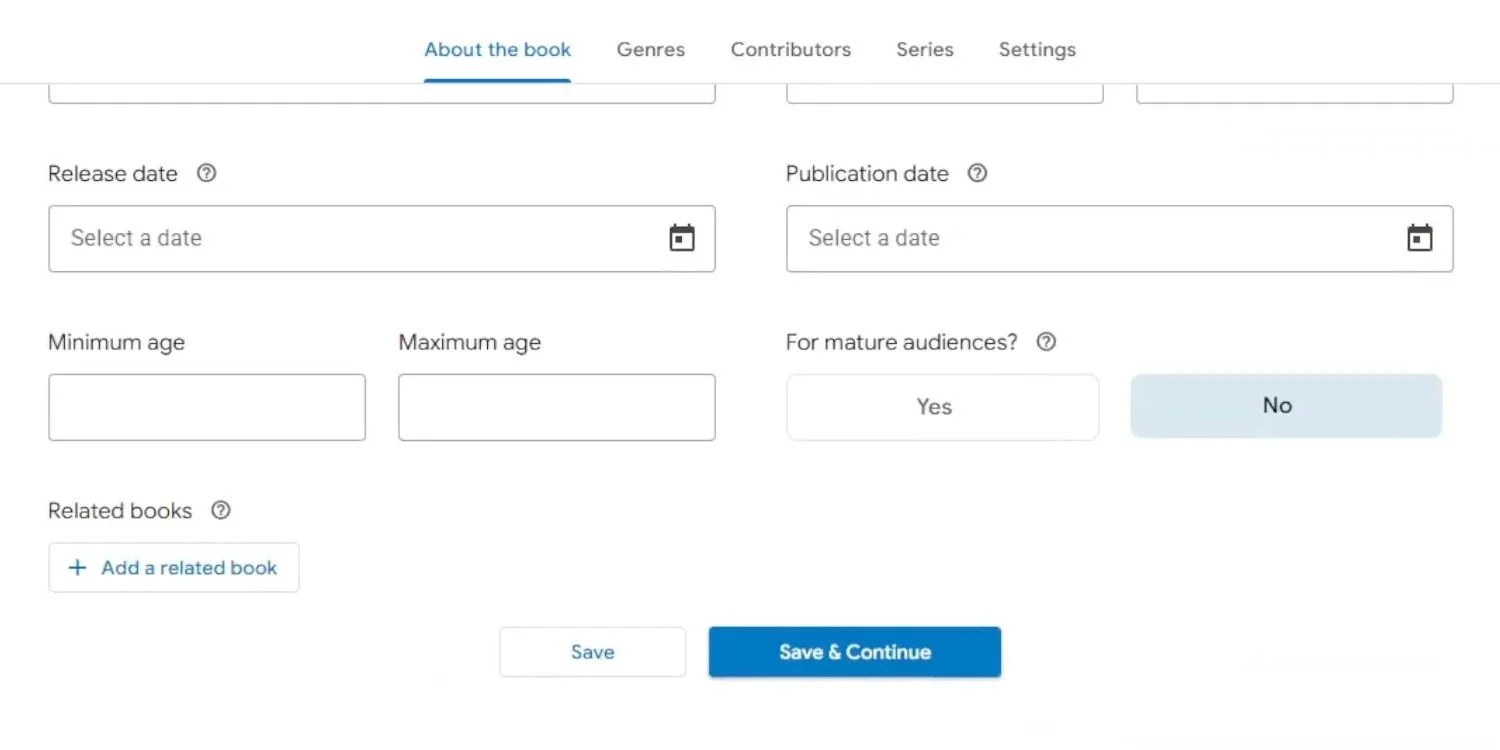
Other fields include Publisher, Format, Page count, Release date, and Publication date.
For Minimum Age and Maximum Age, leave that blank unless it’s a children’s book.
For mature audiences? You’ll be asked to select Yes or No. For most books, the answer is “No” for mature audience content, unless your book is full of excessive violence or scenes that would make a sailor blush.
There’s also an Add related books button. You can “add related books”—such as other books in a series, works by the same author, or related titles—for improved discoverability.
When you’re done, click Save & Continue.
Genres
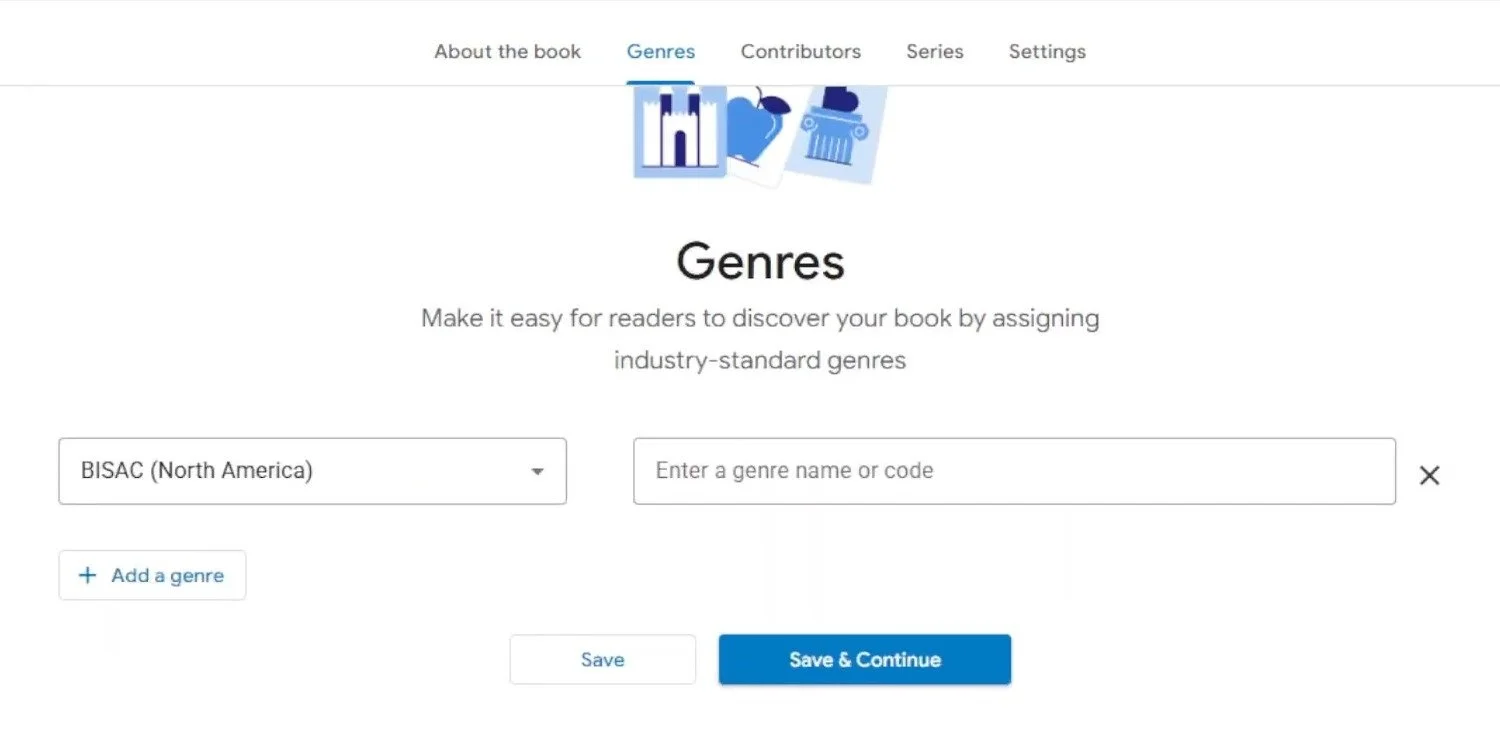
Next, you’re going to see a tab called Genres.
You’ll select genres that categorize your book. There is no limit, but Google recommends three—again, for improved discoverability.
“We highly recommend BISAC (Book Industry Subject and Category) because genres in the Play Store are based on BISAC. If you use a different subject standard, we automatically adapt other codes to work with their BISAC equivalents.
Be warned: You’re going to do a lot of scrolling here. If you want to select your BISAC Subject Headings in advance, here’s the link. The first one you choose should be the most relevant.
Then, when you’re done, click Save & Continue.
➡️Read more: Choosing BISAC Codes for a Book
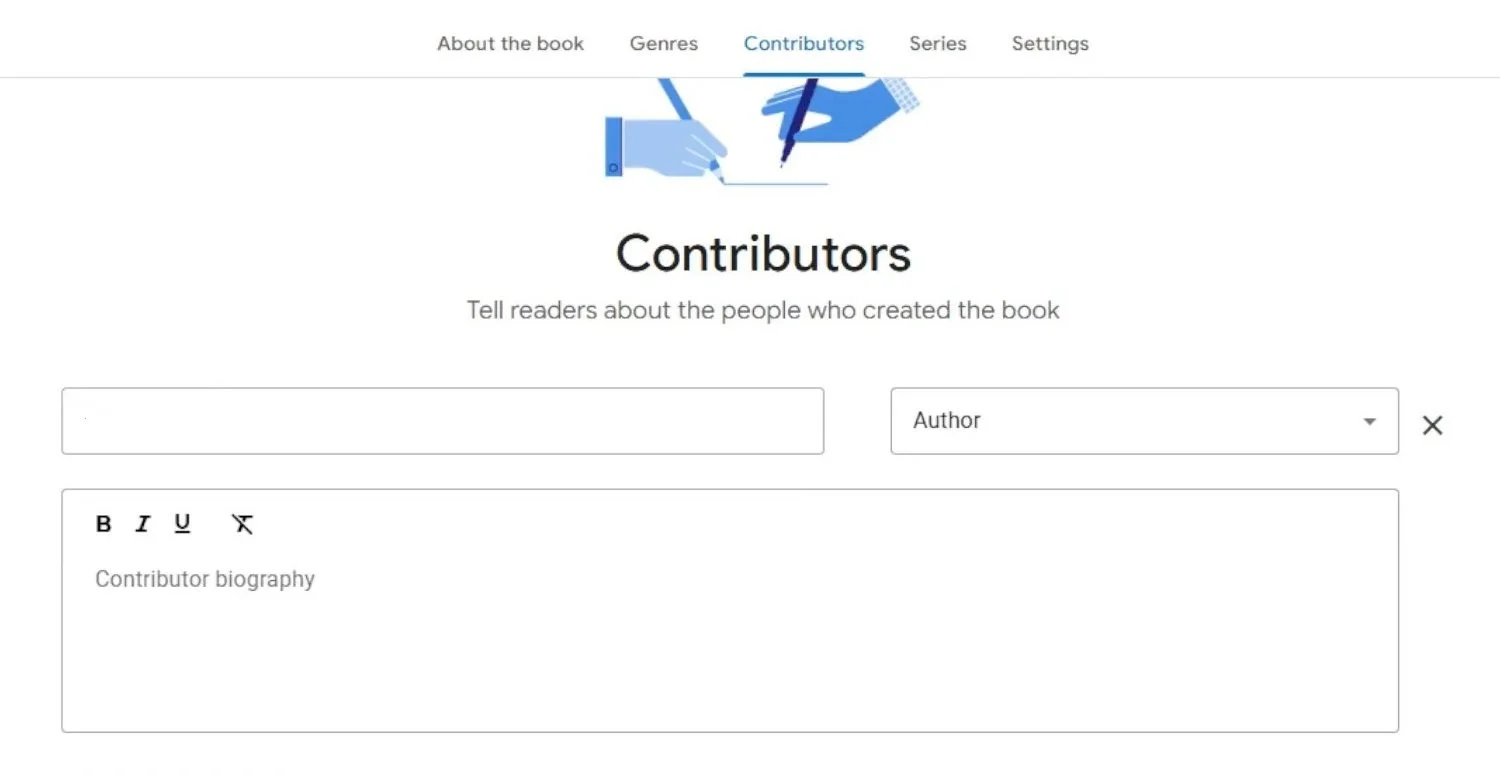
Contributors
The next tab is Contributors.
Enter the author’s name as it appears on the cover.
You can add (or paste) your biography as well. (That should be your short, 100-word author biography—what you might include on the back of the book or on your Amazon Author page.)
If there are additional authors or contributors, you can enter their information as well.
If your book is an illustrated book, you would include the illustrator’s name.
Other than that, it’s not customary to include anyone else here.
When you’re finished, click Save & Continue.
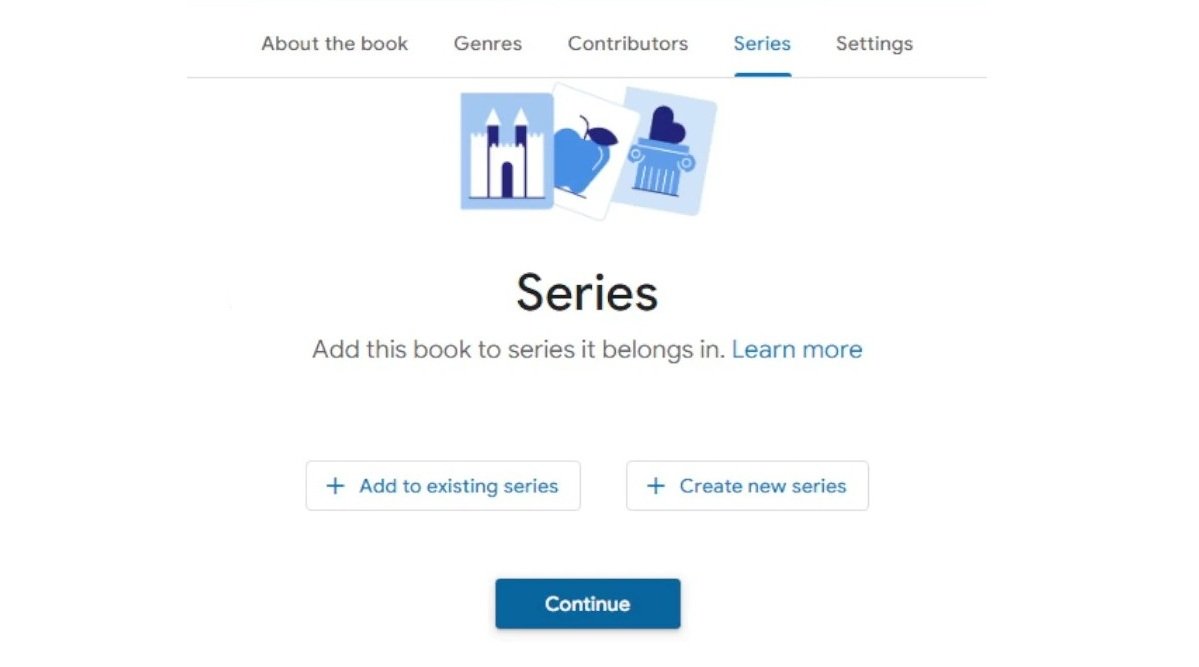
Series
The next tab is the Series tab. You can Add to existing series or Create new series, if applicable, then click Continue.
Settings
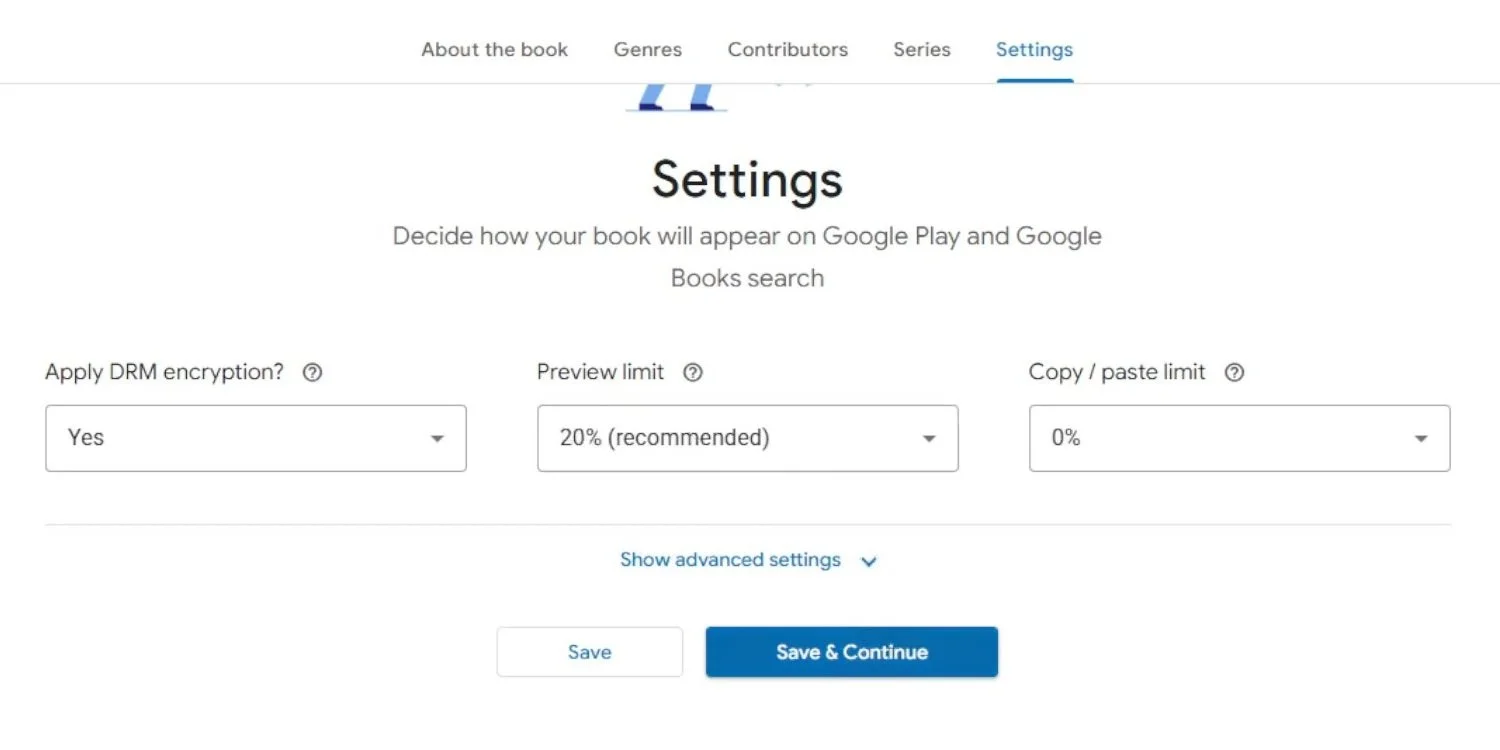
Next, you’ll see the Settings tab.
Here, you:
Apply DRM encryption: Selecting this prevents people from easily copying your content or downloading the file to share illegally, and it restricts them from sharing the file or using it on multiple devices. If you prefer to make your book available on Google Play without DRM, users who purchase and download the book have more flexibility in how they use the content file.
Preview Limit: Set your preview limit; Google requires at least a 20% preview. This is actually a great marketing tool because it lets readers “test drive” your book.
Copy/paste limit: How much of your book buyers can copy and paste. Set that to 0%.
Advanced Settings:
There’s a little drop-down button that shows the Full list of Google Play and Book Search advanced settings.
Now, a lot of these settings won’t apply to your book, and most authors just skip them altogether. But let me point out some items that stand out:
You can add your publisher website and logo, and you can allow a preview of the book before the sale date (so you can set up a pre-order with the preview of the book) if you want to.
Step 3. Content: Upload Content and Cover Files
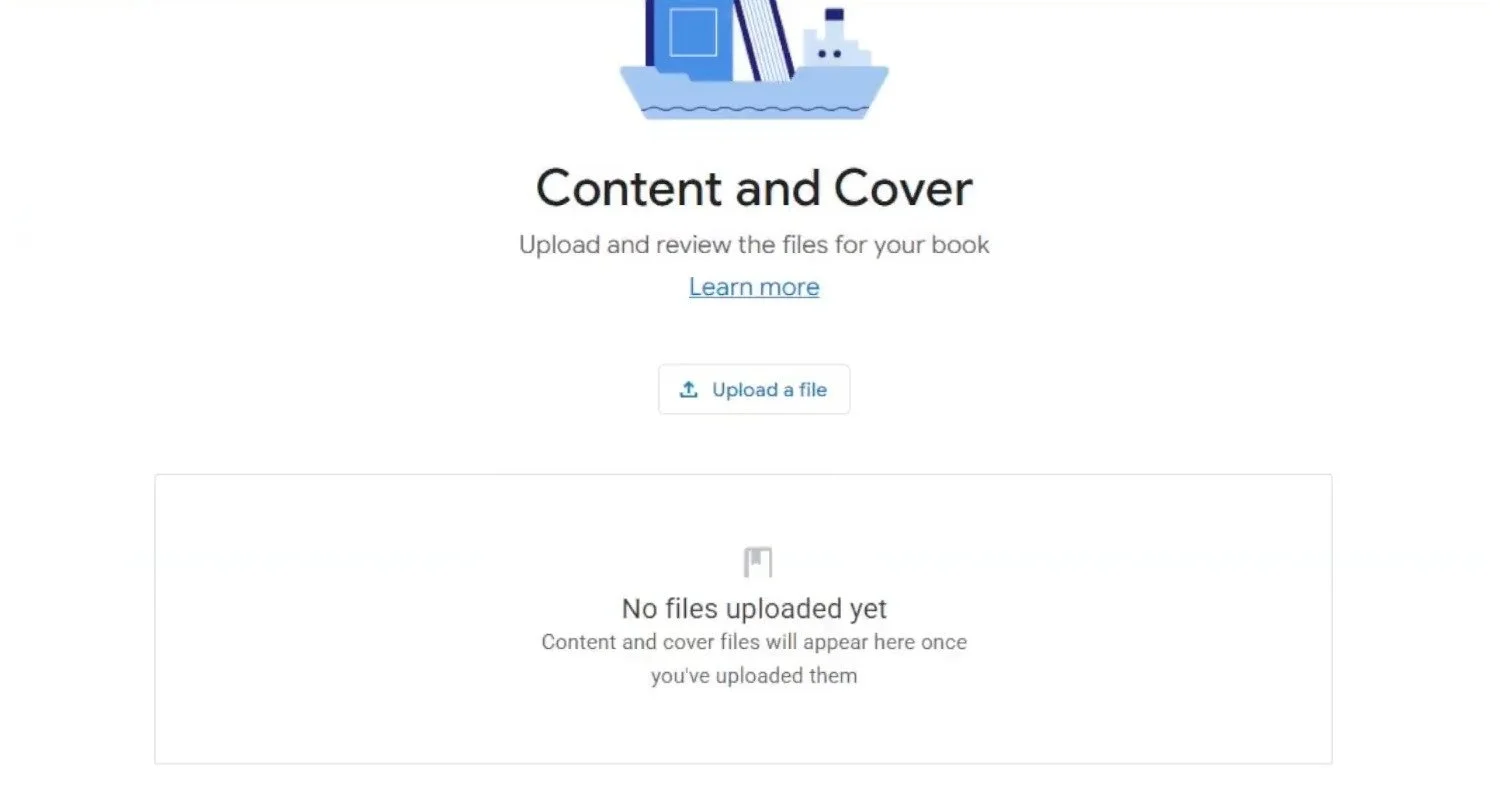
In the Content tab, upload files for the EPUB file and cover of your book.
Click Upload a file and drag and drop or browse and select, one at a time, your cover file and interior file. You can see Google Play Books file and upload requirements here.
Google Play processes your files in a matter of seconds. Once that’s done, click Close.
Below that, you’ll see a section that says Content Reviewers. Here you can add people to read the book on any supported device without having to purchase it—and they can do that before it’s available for sale. That might include a proofreader or a reviewer, for example.
Once your files have been processed, and everything’s good, click Continue.
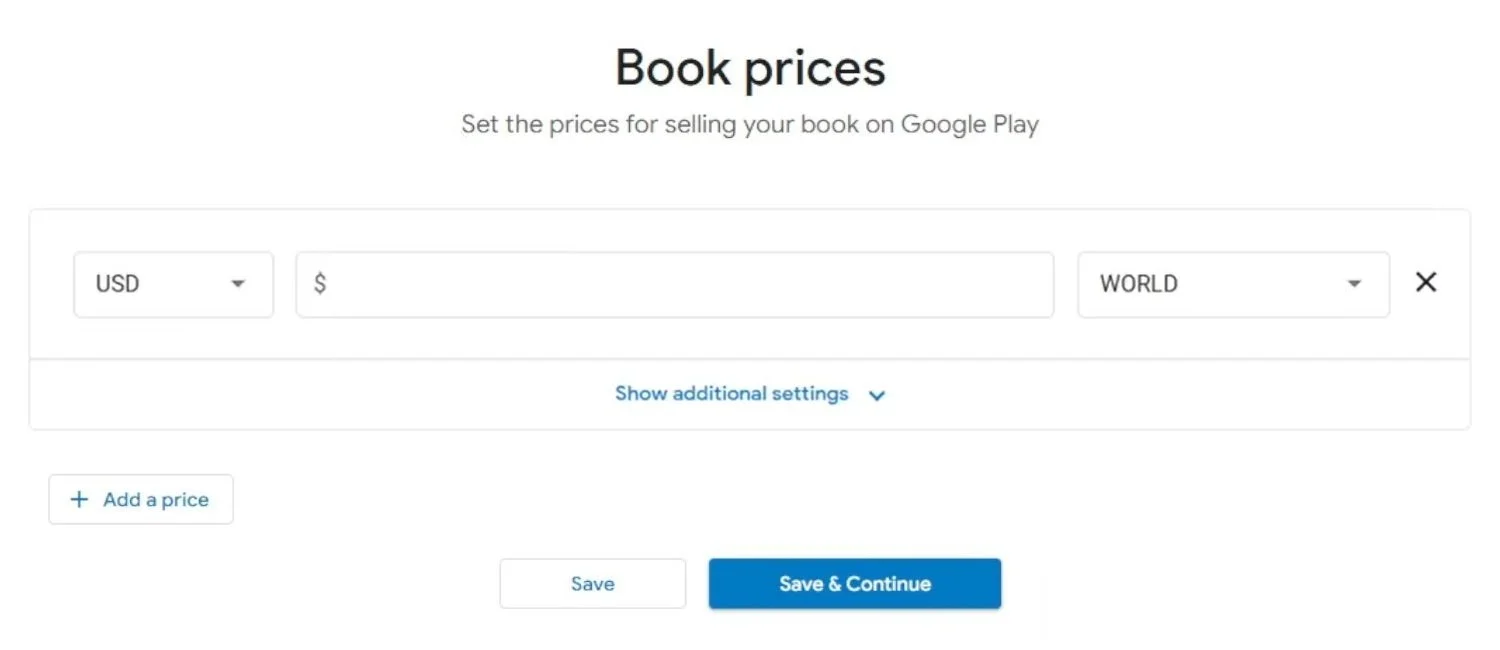
Step 4: Pricing: Set Prices for Your Global Audience
Enter your price in US dollars or in your home country’s currency. Pricing should end in .99.
I would suggest setting a price similar to other books in your genre. (Remember: You can always set price promotions or run sales later on, if you choose to.)
Most importantly, ensure the territory is set to “Worldwide.” This means anyone with an Android device, from New York to New Delhi and everywhere in between, can access your book as long as they have a Google account.
Android users in 75 countries will be able to purchase your book.
Your book’s price will automatically be rounded to the nearest clean number for each country’s Google Play users, depending on the country, either 99, 49, 90, or 00.
There are some Advanced Settings you won’t need, so I’ll skip that.
Then click Continue.
Step 5. Review: Review and Publish

You’ll next see a screen recapping all the details you just entered. Check it carefully.
When you’re ready, click Publish.
Once you hit “Publish,” your book goes into a review phase.
It’s usually pretty quick—within 24 hours—that your book is live on Google Play Books.
If you see a “Need Action” status in your catalog, don’t worry. It usually just means your account is still in that initial review period. Once it’s live, you’ll see your masterpiece in the “top titles” section of your dashboard.
You’ll then be taken to the main dashboard, where you can check the status of your book and see your catalog of titles.
Work with an Experienced Self-Publishing Coach
Launch your nonfiction book the smart way with a clear, actionable self‑publishing plan
Get a personalized publishing audit so you can optimize your sales and marketing efforts and plan your next moves
After Publishing: Google Play Books Partner Center Promotions
Once your book is live, your primary focus should shift to monitoring performance and active marketing to ensure your work stands out in the digital library.
Listing on Google Play/Books improves discoverability but won’t replace a broader marketing plan (ads, email lists, reviews).
You can track your book’s success through the Partner Center dashboard, which provides detailed traffic reports on page views, ad clicks, and “Buy the Book” interactions.

To boost visibility, the sources recommend using promotional tools such as promo codes, series bundles, and series subscriptions.
I love that you can get a rather large number of promo codes to offer free or discounted ebooks and audiobooks.
You also have the option of giving a discount when readers buy three books in your series or to discount new releases when they subscribe to a series. (Not all options are available in all countries.)
Additionally, you should claim and link your author profile to your website and social media to centralize your authority, while continuing to monitor user reviews and sales reports to adjust your strategy as needed.
You might also like:
If you are looking to expand your publishing empire beyond Google, check out my other related articles:
Nonfiction Book Coach for Self-Publishing (hourly sessions available)
Why Publish on Google Play Books? Pros and Cons for Ebook Authors
Apple Books Self-Publishing: Pros and Cons for Ebook Authors
Kobo Writing Life Self-Publishing: Pros and Cons for Ebook Authors
Sources consulted:
Scott Lorenz, “How Authors Can Leverage Google Books to the MAX,” The Book Publicist (blog), https://book-publicist.com/how-authors-can-leverage-google-books-to-the-max/.
Google, “Google Books Authors: Common Questions,” Google Books, https://books.google.com/googlebooks/author_faq.html.
Ezeanaka Sylvester, “How to Publish a Book on Google Play Books | Step-by-Step Guide (2025),” YouTube video, May 30, 2025, 3:23, https://www.youtube.com/watch?v=vosa9GUcSoo.
(⬆️Click the link to learn more about me.)