How to Edit Your Amazon Author Page in Author Central
If you have published a book and it’s sold on Amazon, you are eligible to join Author Central, a free service provided by Amazon. The most important feature of Author Central is the Amazon Author Page. Don’t miss out!
This guide shows you how to edit your Amazon Author Page using Author Central, with practical tips to keep your profile discoverable and professional.
Follow the steps below and allow up to a few days for this process to play out and for your changes to appear on Amazon.
(In case you’re wondering, about me: I’m a nonfiction editor and book coach; I’ve been working with US authors for the past 8+ years, and this is one of 100+ articles I’ve authored about writing, publishing, and book marketing strategies.)
What is an Amazon Author Page?
An Amazon Author Page is a central hub where readers discover who you are and what you have written. Your Author Page displays your books, biography, and profile photo across Amazon stores, search results, Follow widgets, Kindle books, and Audible.com author pages, and elsewhere around Amazon.
Author Pages are available in 12 marketplaces: Amazon.com, Amazon.co.uk, Amazon.de, Amazon.fr, Amazon.co.jp, Amazon.com.br, Amazon.in, Amazon.it, Amazon.es, Amazon.com.au, Amazon.ca, and Amazon.com.mx. Author Pages typically display your bio, photo, and books if you have books available in those marketplaces.
Why an Amazon Author Page matters
A well maintained Author Page builds credibility, helps readers find the books you’ve written, and increases the chance that a casual browser becomes a reader. It also creates a human connection that many readers appreciate and value.
Amazon Author Central vs. KDP

Amazon Author Central is the tool you use manage your public author profile, including your bio, photo, videos, and editorial reviews, and link your books to your Author Page. This profile appears across Amazon wherever readers encounter your work.
Amazon KDP (Kindle Direct Publishing) is where you upload manuscripts, update covers, adjust pricing, and edit categories or book descriptions in order to publish a book directly to Amazon. Changes made in KDP do not update your Author Page. You can add Editorial Reviews in Author Central, but if you want to change the bio readers see on your author profile, you must use Author Central.
Amazon Author Page setup
Sign in to Author Central with the same Amazon account you use for KDP at authorcentral.amazon.com.
If you do not already have an Author Central account, create one using your KDP credentials so you can claim and manage your books. If you’re a traditionally published author or did not publish with KDP, you can log in using your Amazon login or by creating a new account.

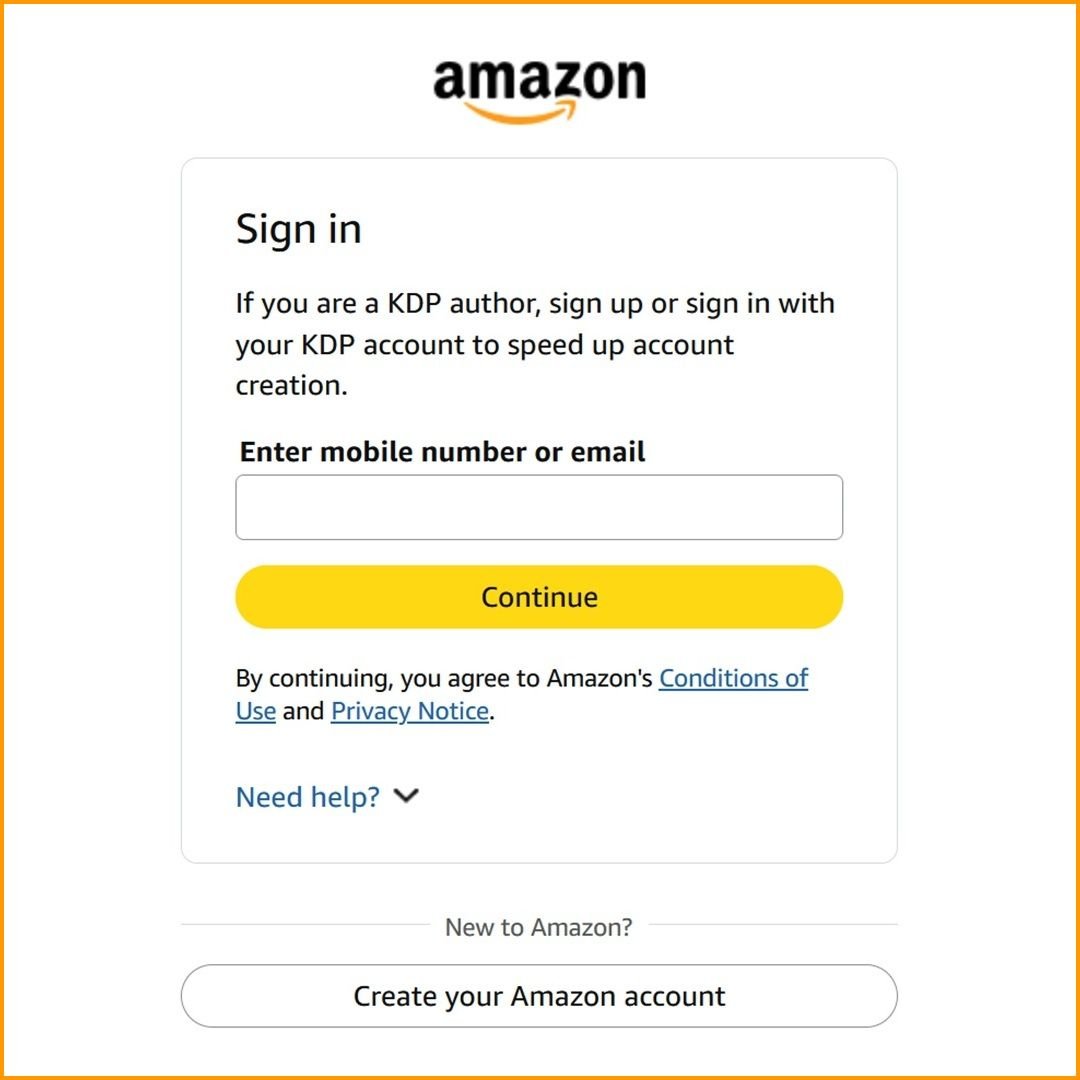
After you sign in, verify your author profile when prompted.
Verification confirms you are the author of the books you claim and unlocks the ability to edit your profile and attach titles to your page.
Claim and manage books
Click the book(s) associated with your author name to claim your Author Page and get started. You’ll be asked to agree to terms and conditions, verify your choice and click Yes, Join as [your author name].
You can claim books by searching titles, author name, or ASIN and clicking Add books” or Claim. Make sure you claim each edition (Kindle, paperback, audiobook) you want shown on your page.
Amazon may contact your publisher if you’re traditionally published or if you used a hybrid publisher or self-publishing service to verify your identity.
Once you sign up for Author Central, it may take a few days before your page appears on Amazon.com; you may be unable to create your Amazon Author page, make updates to your profile, and have them go live all at the same time.
Amazon Author Central and pen names
Pen names are supported. Amazon creates pages according to the author name listed for each book. If you write under multiple pen names, manage a separate Author Page for each pen name and add the relevant books to each page. This ensures followers receive notifications for the pen names they choose.
Amazon’s tips for pen name consistency:
Use the same pen name across all formats of the same book.
Keep the pen name consistent across a series.
Match the pen name on the cover and on the book detail page.
If you add a pen name, you must have at least one book available under that name for verification.
To add a pen name in Author Central, click Add a book. At the top of the page, you will see a message. Click Add it now. Follow the prompts to enter the ASIN or author name of the book you’ve written with the pen name that you want to add. Confirm that the author name is your pen name, and click Add this book. You will see [Author name] is my pen name. Click Continue.
After verification, an additional Author Page for that pen name will appear in your account. As Amazon explains, “to switch between pen names, use the drop-down next to your name in the upper right corner of Amazon Author Central account.”
You can manage up to three different author names in one Amazon Central account.
Edit your Amazon Author Central profile
Next, you’ll use the Profile tab to edit your author profile by updating your biography, uploading a photo, and customizing your Amazon.com author page URL.
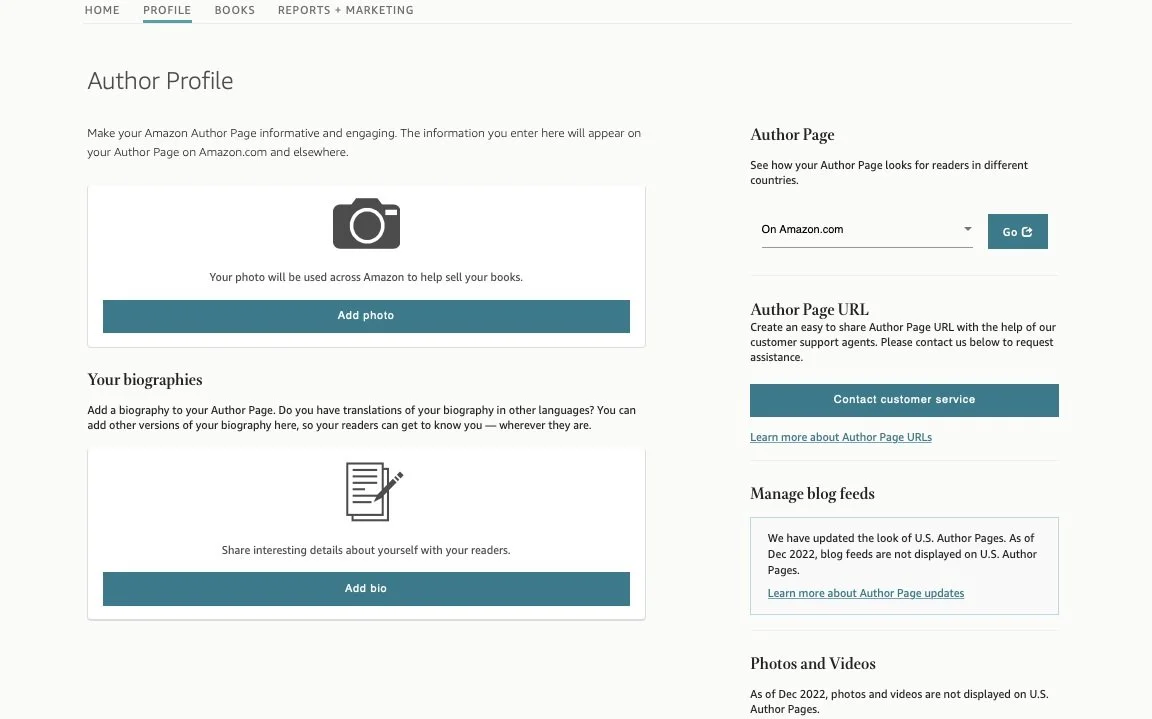
Add a photo in Author Central
Photos help readers connect with you.
To add a photo: Click the Profile tab in Amazon Author Central. Click on the pencil icon. Then click Upload new photo. Choose and upload a recent professional headshot or an on-brand photo that shows you in your element and at your best. Minimum photo size is 300 pixels in width and height. Photos must be in JPG, GIF, or PNG format.
Add author bio in Author Central
Your author bio is a key element of your Author Page.
To add or edit a bio, from the Profile tab, in Your Biographies, click Add bio, choose the language, and enter text that follows the guidelines.
As Amazon states, “How you write your bio is up to you and depends on how you publicly present yourself to your readers.”
How long should an Amazon Author bio be?
Amazon recommends keeping bios under 1000 characters (on average, 150 to 200 words) to ensure they display well across devices.
Aim for a 100 words and include the following elements: your books, what you study or write about, or what you do, your achievements and credentials, and a personal detail or fun fact.
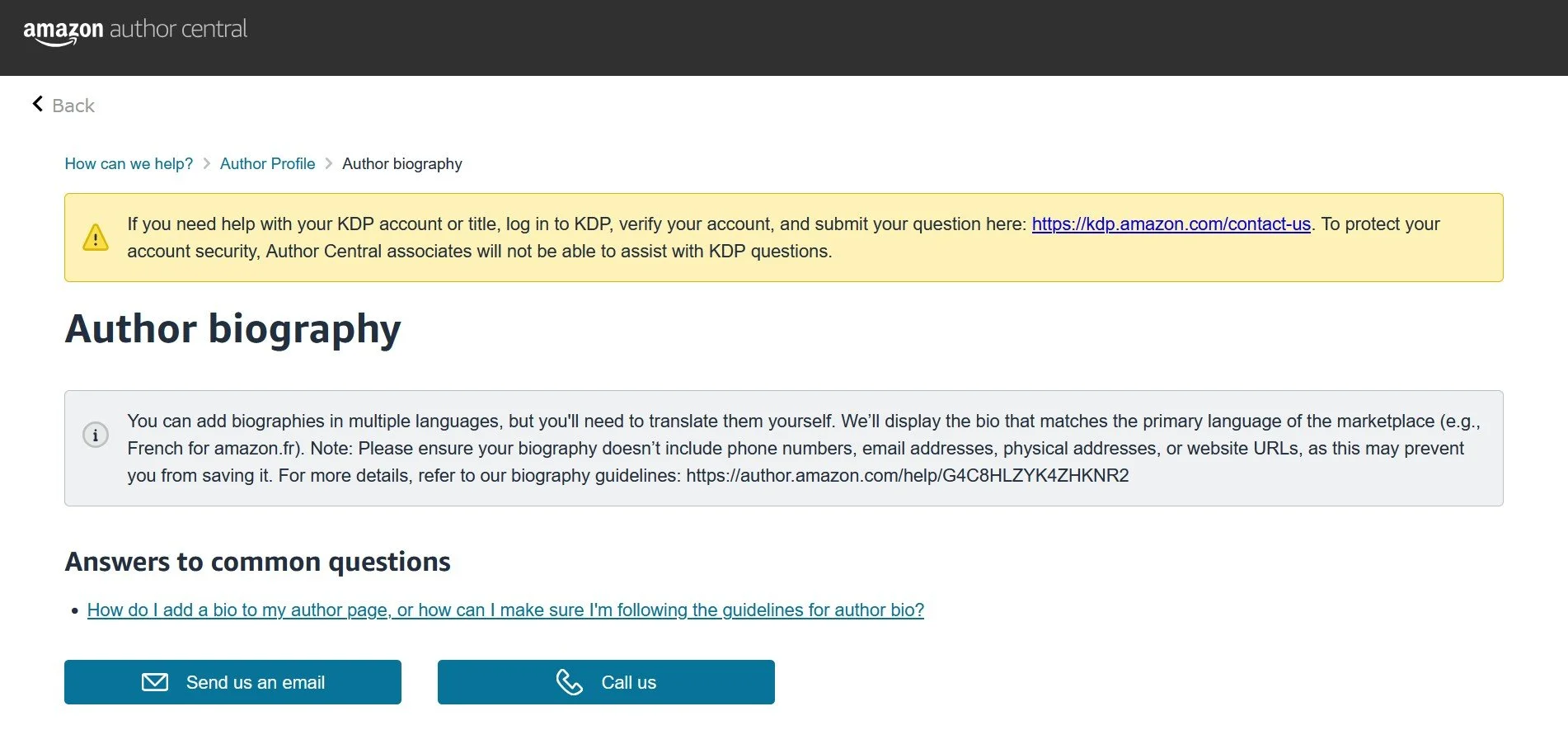
Author Central bio guidelines have changed. “Author Central does not support adding phone numbers, email addresses, physical addresses, website URLs, time sensitive statements, advertisements, availability or price details, or promotional content.”
If you’d like to encourage readers to follow or connect with you, a workaround that has worked for some authors has been to include websites, social media handles, or Substack accounts by writing the word “dot” or “at” where relevant.
Click Preview bio and then click Publish. It can take one to two days for a new bio or updates to appear on your Author Page.
If you can’t publish, first confirm you meet Amazon’s guidelines. If everything checks out, try logging out, clearing your browser cache, typing your bio manually instead of pasting it, or updating from a different browser.
Amazon author bio examples
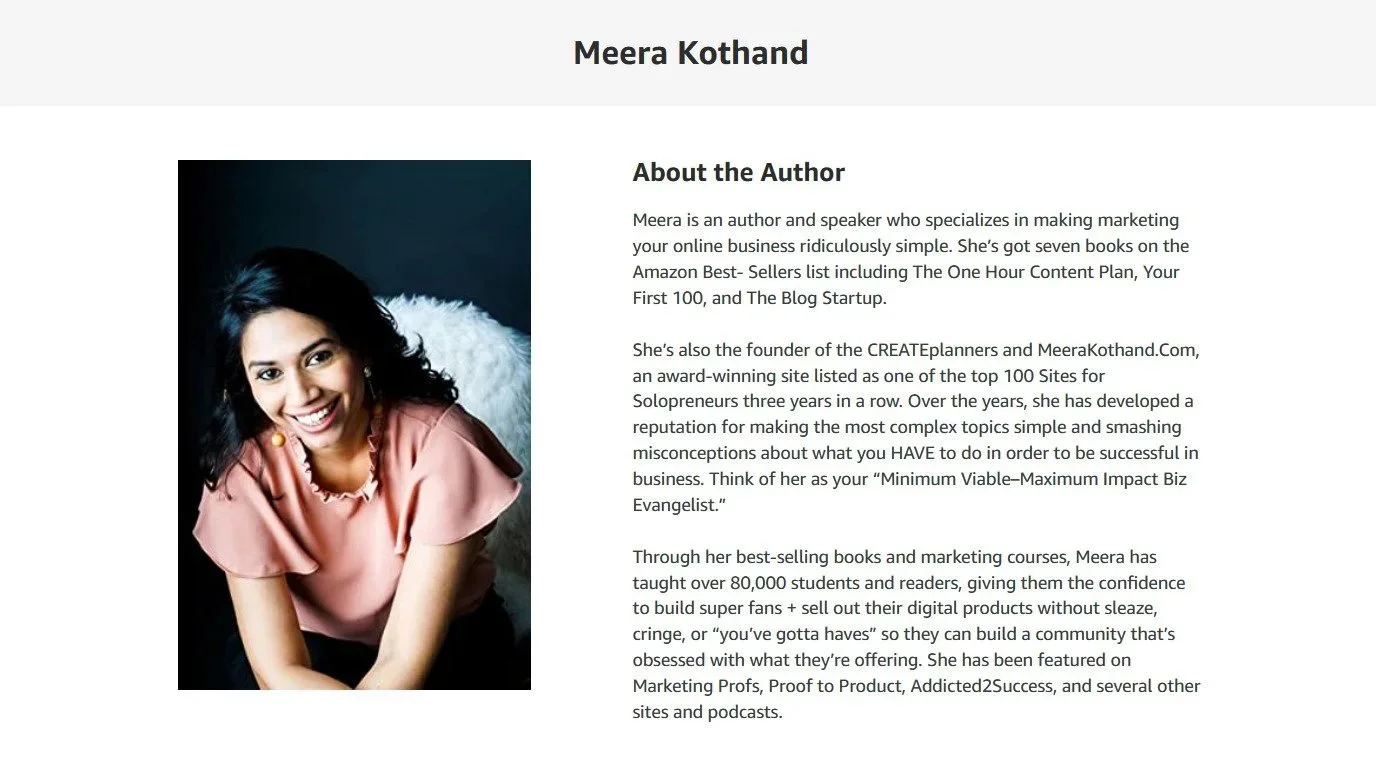
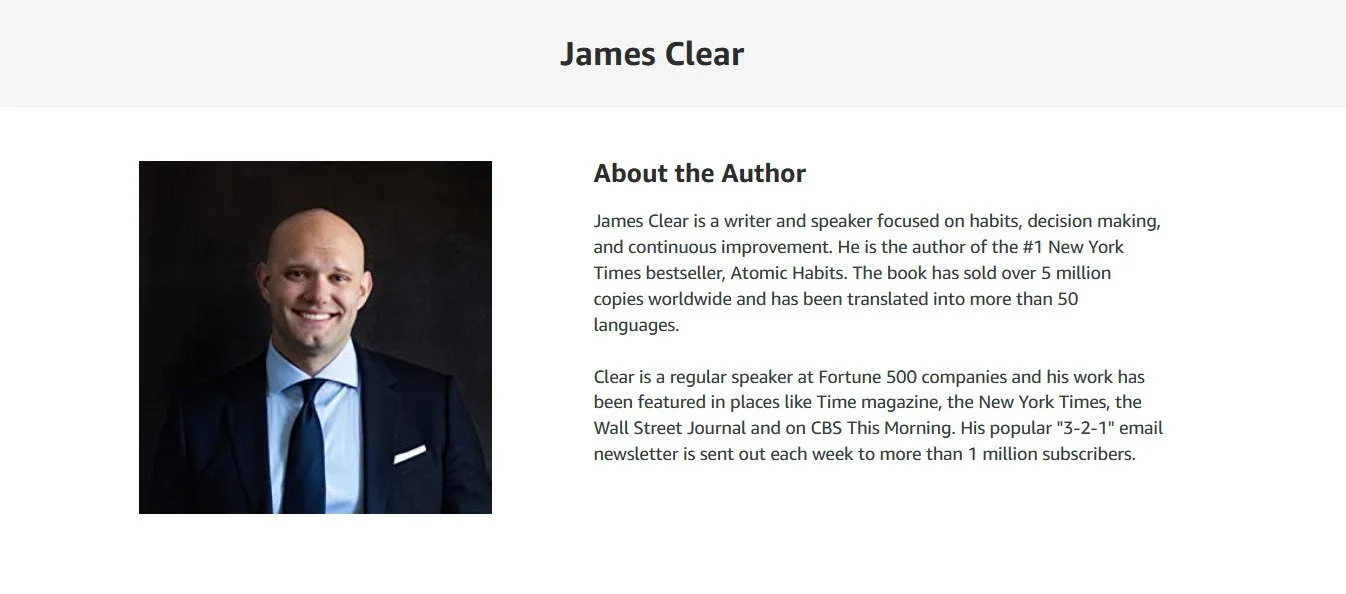
To add a bio in another language, click Add bio in new language and repeat the steps above.
If you sell books in multiple marketplaces, or you’re bilingual, you can add author bios in French, German, Italian, Japanese, Portuguese, and Spanish. You’ll need to provide accurate translations for each language.
Amazon will show the bio that matches the primary language of the marketplace or the customer’s preferred language when available. If you did not provide a bio in a different language, or if Amazon does not allow you to edit your Author Page for those marketplaces, Amazon will show your English bio.
Consistency is key: It’s best to keep your branding consistent and use the same headshot and bio you would use on other platforms. So you’ll probably use the same bio you’ve used elsewhere and the same photo that appears on your website or in the About the Author page in your book.
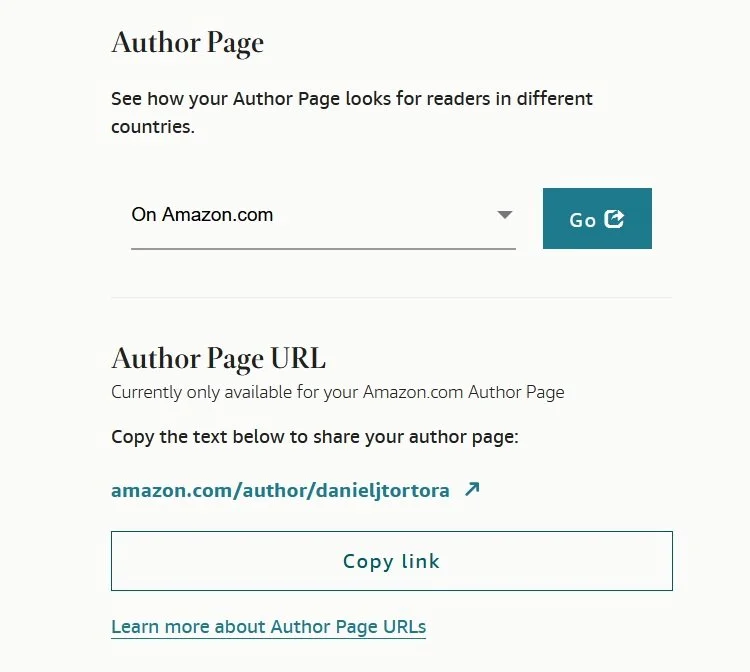
Preview Author Page
You can also see how your Amazon page looks on different international Amazon sites.
In the Profile tab, click See how your Author Page looks for readers in different countries. Select Amazon.com or whatever international site you’re interested in and click on the Go button to preview your page. Not all features will be available in every Amazon site, but it’s neat to see. (Note that it takes a few days for your updates to populate to the different Amazon marketplaces.)
Amazon Author Page URL
In the Profile tab, it’s also possible to create a custom, sharable URL for your Amazon Author page on Amazon.com. I recommend doing this; it’s pretty self-explanatory.
Creating a customized URL that includes your author name and/or is more shareable is a wise idea. Once you create an Author Page URL, this Amazon Author page link cannot be changed.
See my Amazon Author page URL here.
Get expert guidance on marketing your nonfiction book.
Schedule a coaching call, build a customized book marketing plan, or dive into the Book Marketing Strategies course.
Amazon Author Central troubleshooting, timelines, and help
If you cannot access Author Central or your books are not claimable, confirm you are signed in with the same Amazon account used for KDP and follow the verification steps in Author Central.
If a book will not attach to your Author Page, verify the exact author name and ASIN or try searching by ISBN or publisher listing.
If you cannot upload your photo or save your bio, ensure that you’re within Amazon guidelines. If that fails, log out, clear your browser cache, log in, and try again, or try making the edits in a different browser.
If edits do not appear after you publish them, wait 24 to 72 hours and clear your browser cache. Regional caching can delay updates in some marketplaces.
Author Profile changes may not go into effect instantaneously. Whenever you make changes in your Author Central account, it may take a day or two to be visible to the public. As Amazon notes, “allow time for Amazon to propagate updates across regional sites,” as “changes can take time to show everywhere.”
Need Help? Amazon Author Central’s Help page is pretty thorough. There are several ways to access customer service.
Amazon Author Page setup checklist
A practical checklist to finish today:
Sign in to Author Central with your KDP account.
Claim at least one book so your Author Page is created.
Upload a professional headshot that meets the size and format requirements.
Publish a short bio that leads with a hook and includes relevant keywords.
Claim all editions of your books so readers can find every format.
Check product pages in KDP (if you’ve published with KDP) for any metadata updates that must be made there.
Update your Author Profile as needed. Refresh or update your bio. Swap out your author photo. Add editorial reviews.
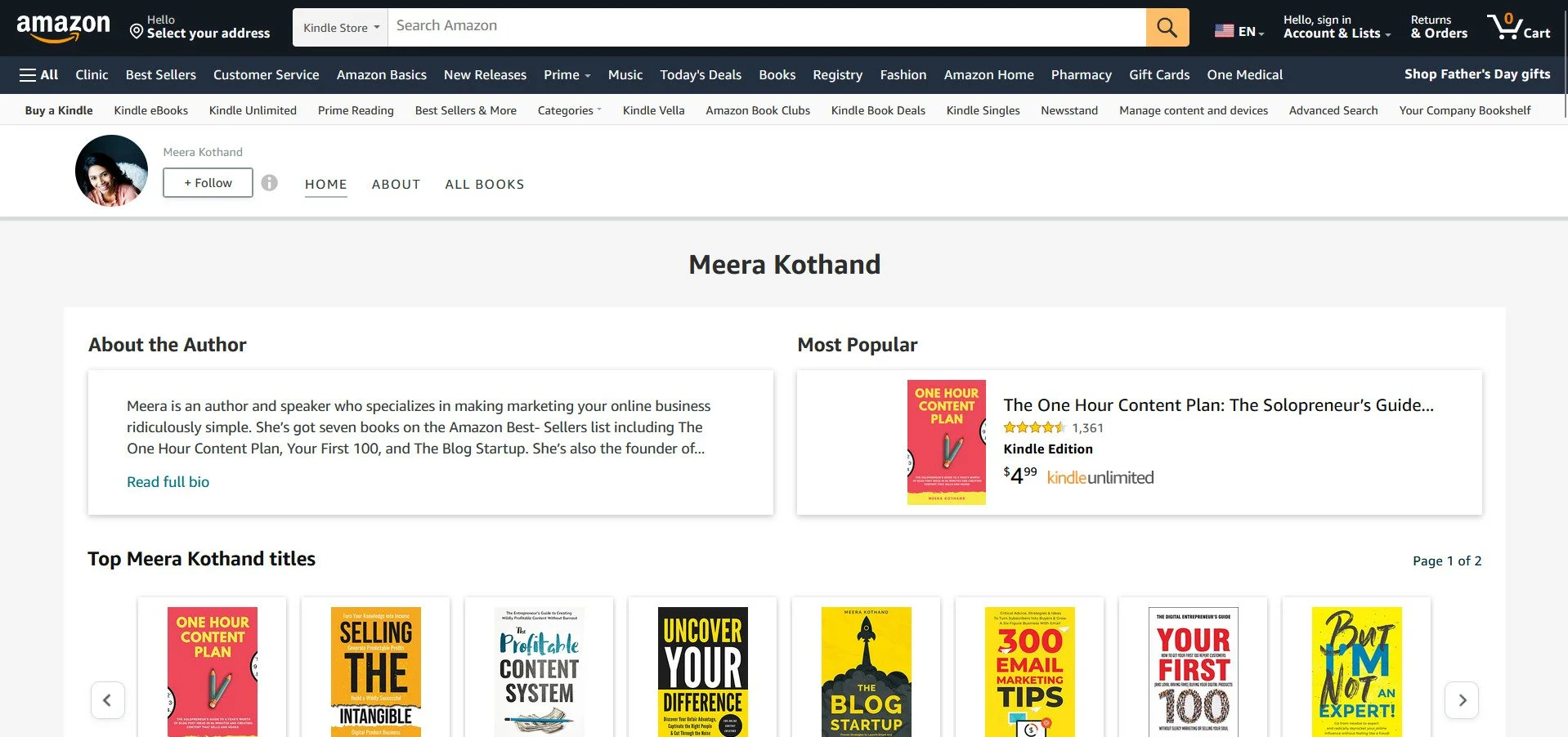
Amazon Author Page example
Amazon Author Pages: Summary and next steps
Amazon Author Central is your free tool to showcase your book or books and to give readers a little bit about you.
Your Amazon Author Page is a public storefront for your author brand. It displays across Amazon stores, search results, Follow widgets, Kindle books, and Audible.com author pages, and elsewhere. Author Central is where you edit your biography, photo, and claimed books. KDP is where you manage book files and product metadata for books self-published directly on the Amazon platform.
Set up your Amazon Author Page today. Claim your book or books. In the Profile tab, add your author photo. Add your bio, but keep it concise. Create a custom Amazon Author Page URL. Making these updates will begin to improve discoverability and help readers connect with your work.
Related articles:
Amazon Editorial Reviews: How to Add in Author Central by Daniel J. Tortora
How to Sell More Books on Amazon by Daniel J. Tortora